Ad Commander and Ad Commander Pro 1.3.0 added the ability for AI Agents to easily interact with your ad statistics and ads. The abilities currently exposed to AI Agents are:
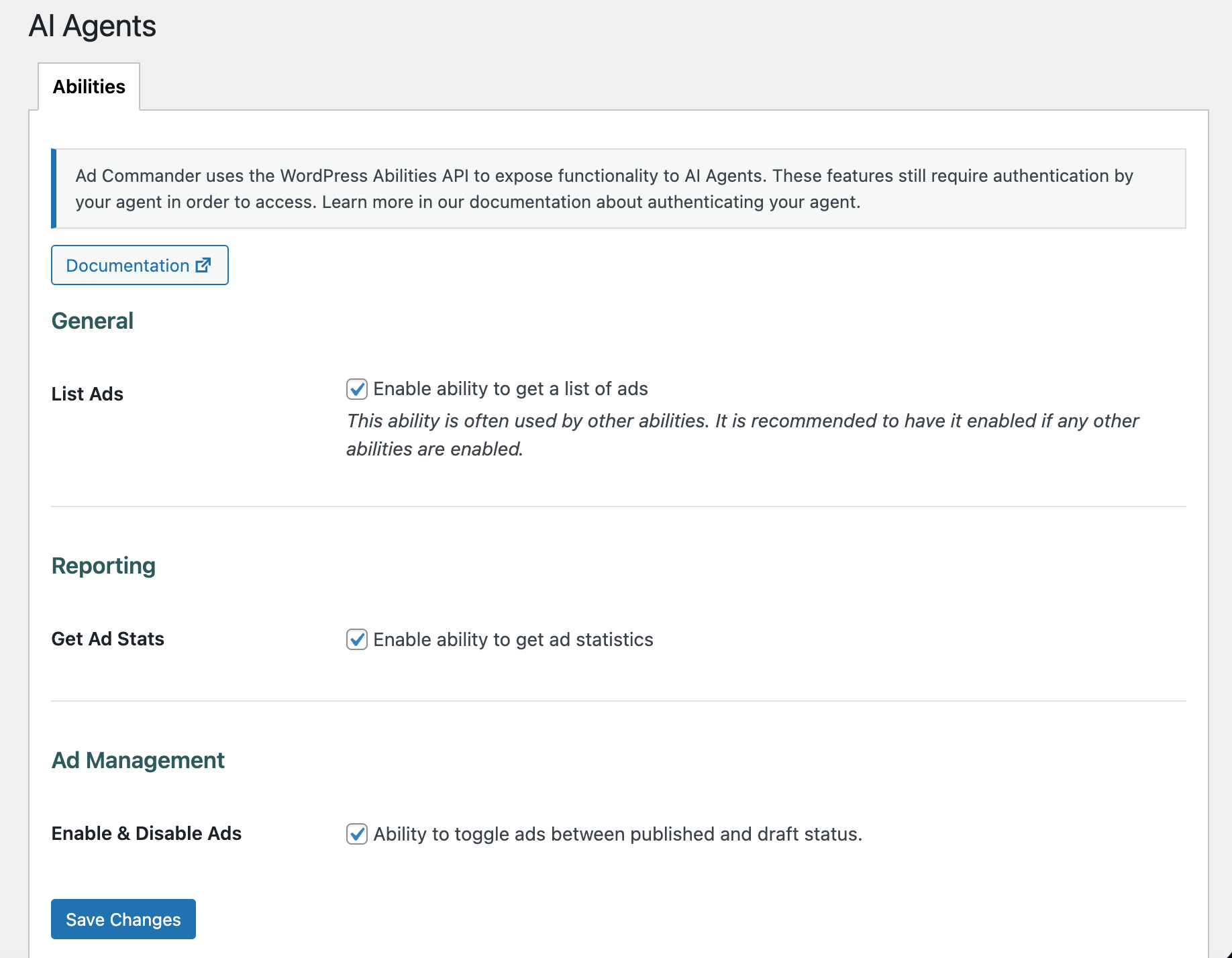
- Get list of ads: Ad ID, title, and published status are returned.
- Get ad statistics: Report data is filterable in the same way as the traditional Ad Commander Reports screen. Agents can specify the period to return or filter by ad IDs.
- Change ad status: Agents can switch ads between publish and draft post status.
- More abilities coming soon.
Requirements
There are a few requirements that must be met for AI Agents to interact with Ad Commander:
- WordPress 6.9 or higher
- Ad Commander 1.3.0 or higher
- Ad Commander Pro 1.3.0 or higher (required for some abilities)
- Abilities enabled in Ad Commander -> AI Agents
- Local tracking enabled (if using the get-ad-stats ability)
- Authenticated access to your website by your agent
Getting started
Before beginning to work with your agent, make sure you’ve enabled the necessary abilities in Ad Commander -> AI Agents.
Granting access
As mentioned above, an agent must have authenticated access to your site in order to access these features. All abilities require the same user capabilities that a regular WordPress user must have to access your Ad Commander data. Typically, this is the manage_options capability (Administrator). You can also enable Editor access to Ad Commander in settings to lower this requirement.
The way in which you give an agent access to your site is outside the scope of Ad Commander itself, but one option is to create an Application Password for your user or a separate user. You can then provide the username and application password to your agent. Also, consider implementing the WordPress MCP Adapter on your site. When using the MCP adapter, credentials do not have to be provided directly to the agent.
Pointing your agent in the right direction
Once you’ve created a way for your agent to authenticate to your website, the next step is pointing it toward your site. Here’s an example of how to do this:
I have a WordPress site with the Abilities API enabled. Please connect to my site at [https://XXXX] and retrieve a list of Abilities that are available. You can use the username [username] and password [password] to authenticate.
If you’re not using the MCP Adapter, your agent will use curl or a similar means to authenticate and retrieve a list of Abilities from the WordPress REST API. If successful, your agent should provide a list of Abilities that includes those available from Ad Commander.
Usage examples
The tools provided by Ad Commander allow you to create agent automations that suit your particular goals. A couple of use cases could be:
Check my ad stats for the last 30 days. If any ads have below a 1% CTR and over 1000 impressions, set them to draft.
In this scenario, the agent could pull ad stats, evaluate the data, and then switch an ad to draft. You could also modify this example to pull data from your analytics platform if your agent has access.
Pull my ad stats every Monday and send me an email summary.
This would automate your ad stats retrieval to avoid having to login to WordPress and pull reports manually.
Limiting risk and unexpected behaviors
Ad Commander makes these tools available to your agents, but how they are used is ultimately up to you and your agents. To limit risks, we have chosen not to create tools that allow agents to delete or trash ads. They are limited to switching the post status between draft and publish.
Having said that, it is possible an agent could find a way around this limitation. For example, another plugin or WordPress itself could expose the ability to delete posts of any type. Another possibility is that an agent could decide to open a web browser, find your ad, and click delete. This behavior would circumvent the Abilities API.
To help avoid these scenarios we recommend that you monitor the abilities available to your agent. We also recommend being explicit in what you want your agent to do or not do.
A note on page caching
If an agent is enabling or disabling ads, and your site uses page caching, we recommend using client-side rendering. This will avoid your ads continuing to display after being moved to draft.