Ad Commander integrates with WooCommerce to allow you to sell ads on your website. To get started, install and configure WooCommerce, then enable the integration in Ad Commander -> Settings -> Selling.
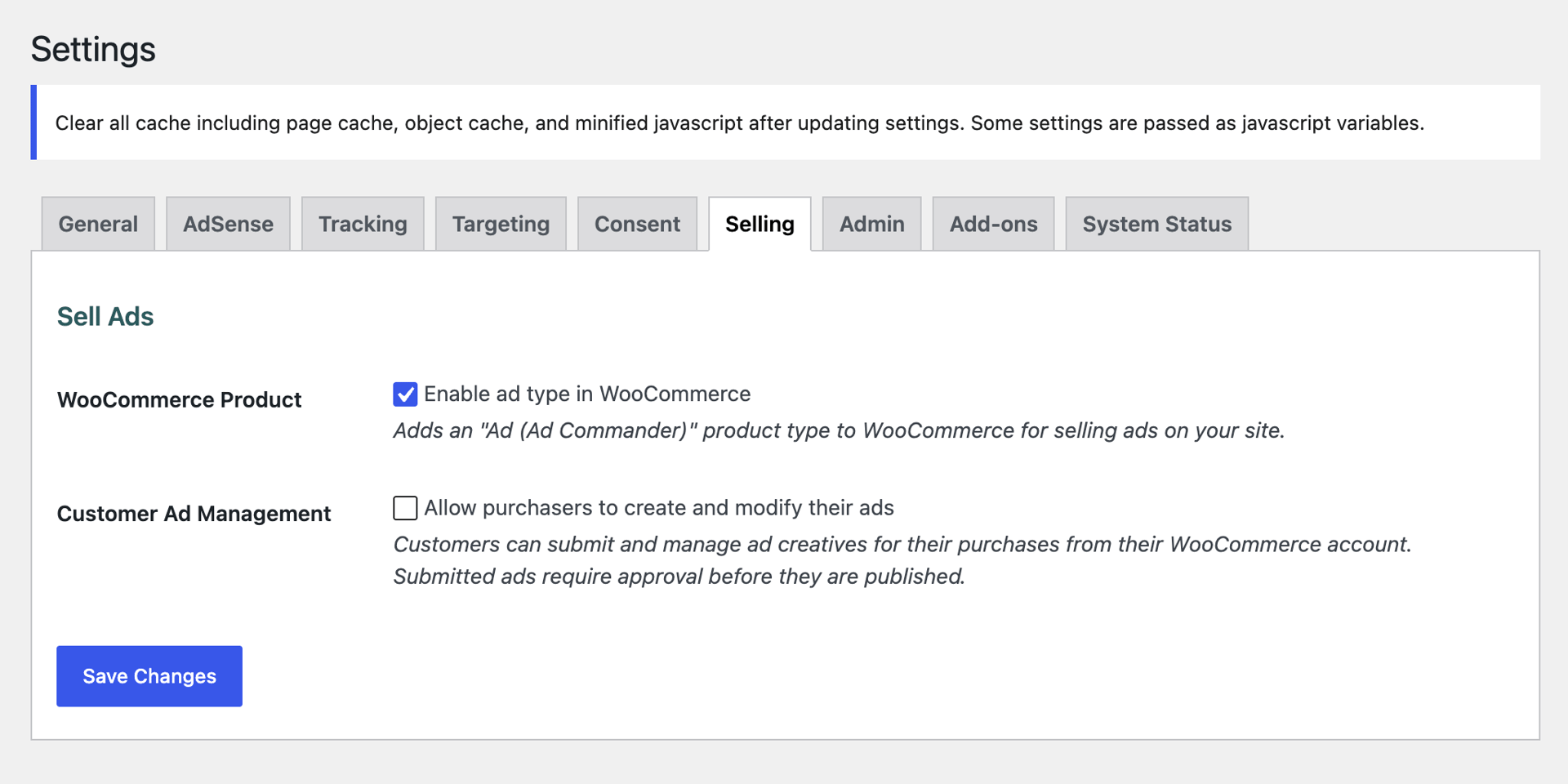
Ad Commander Pro users can allow purchasers to create and modify their ads by enabling the Customer Ad Management setting.
Creating an ad product
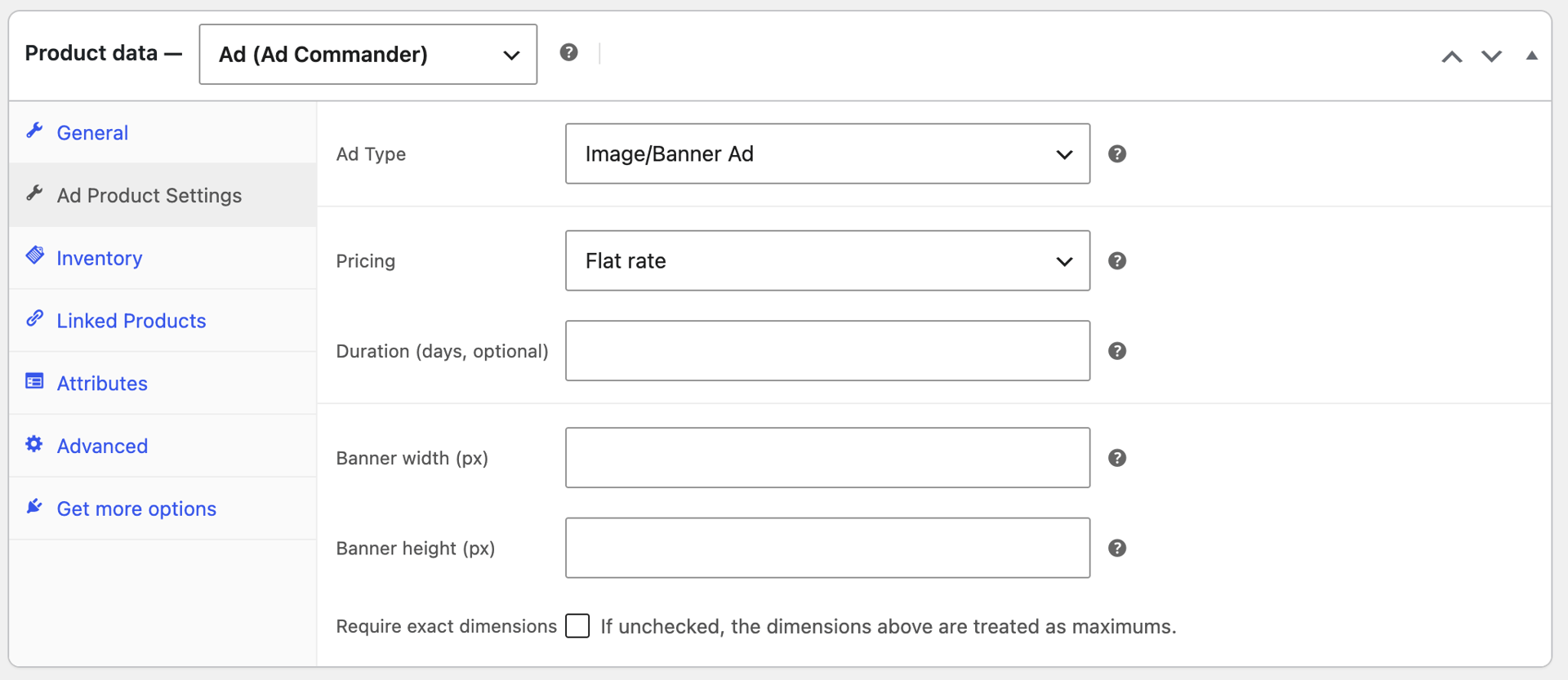
To create your first ad product, add a new WooCommerce product. Select “Ad (Ad Commander)” as the product type in the Product Data section. The Ad Product Settings section will appear. Note that settings may vary depending on whether Customer Ad Management is enabled.
Ad Product Settings
Pricing
- Flat rate: The Regular/Sale price is charged for the ad.
- Price per day: The buyer selects the number of days they want the ad to run. The regular/sale price is multiplied by the number of days selected. If the price is $10 and the buyer selects 30 days, they will pay $300. (Note: Admins can set the minimum, maximum, and default days.)
Duration
If a duration is specified, the number of days will display on the product page. When an admin publishes an ad (or when it publishes automatically via a schedule), an expiration date is automatically set based on the duration specified.
This same functionality also occurs on price-per-day ads, but is based on the number of days a user selected.
Banner dimensions
If you’d like to restrict the dimensions of an ad, specify a width and/or height. Optionally, require dimensions to be exact. If these settings are enabled, purchasers must upload banners matching the dimensions.
Recommended WooCommerce settings
If using the free version of Ad Commander or if you have Allow purchasers to create and modify their ads disabled, then your WooCommerce settings are less crucial. You can configure your store as you’d like.
If you are allowing purchasers to create their own ads, there are a few settings you should consider adjusting:
- Account creation: Purchasers must create accounts in order to create ads. We recommend enabling account creation both During checkout and On “My account” page.
- Login: Similarly, turning on Enable log-in during checkout will make the process easier for your ad purchasers.
- Guest checkout: We recommend disabling the Enable guest checkout option in WooCommerce if you are only selling ads. If you sell other products, you may choose to leave this option enabled. If the option is enabled, Ad Commander will prevent guests from adding Ad products to their cart.
Ad purchase and creation flow
There are two flows dictated by whether you allow purchasers to create their own ads or not.
If purchasers cannot create and modify ads
If you have the Allow purchasers to create and modify their ads disabled, the purchase flow is manual: Customers purchase an ad product, and you coordinate with them outside of your website. You manually create and manage their ads yourself.
If purchasers can create and modify ads
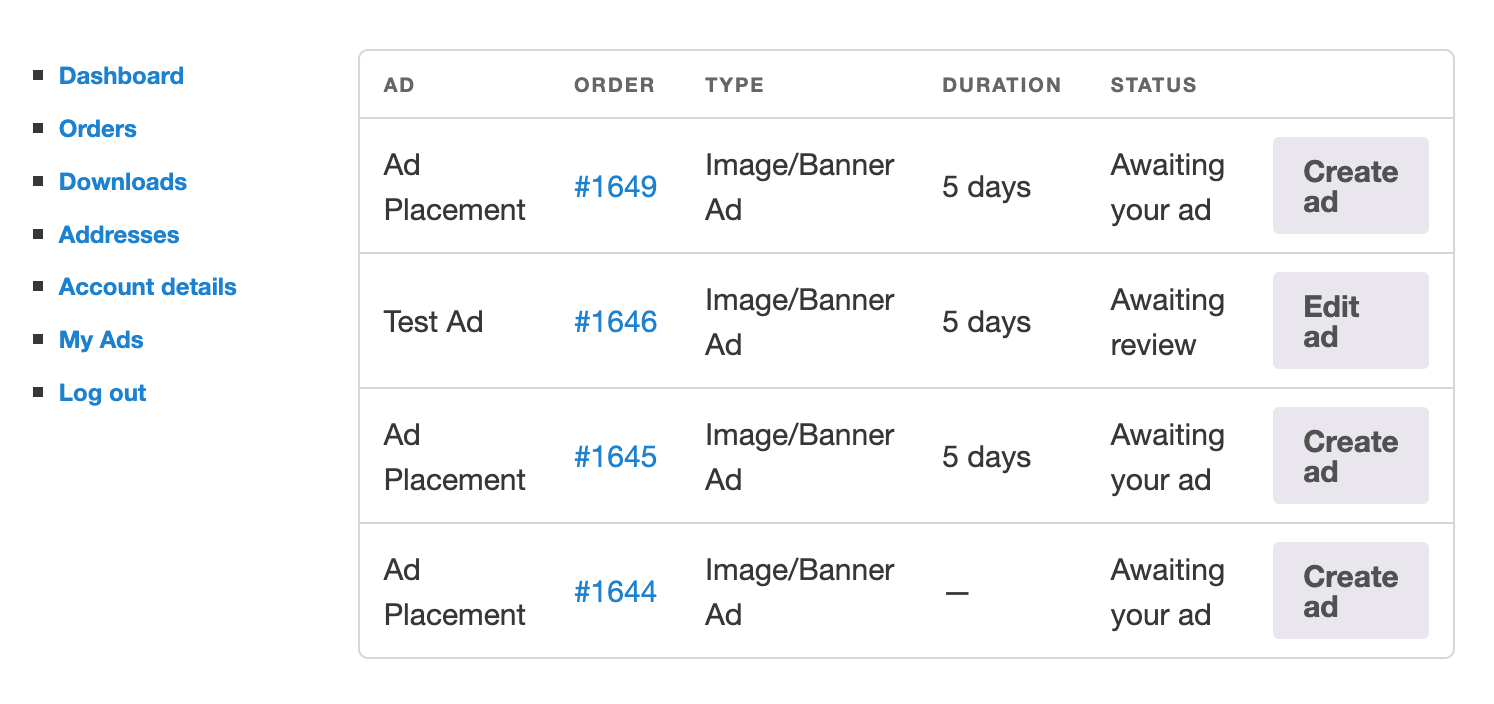
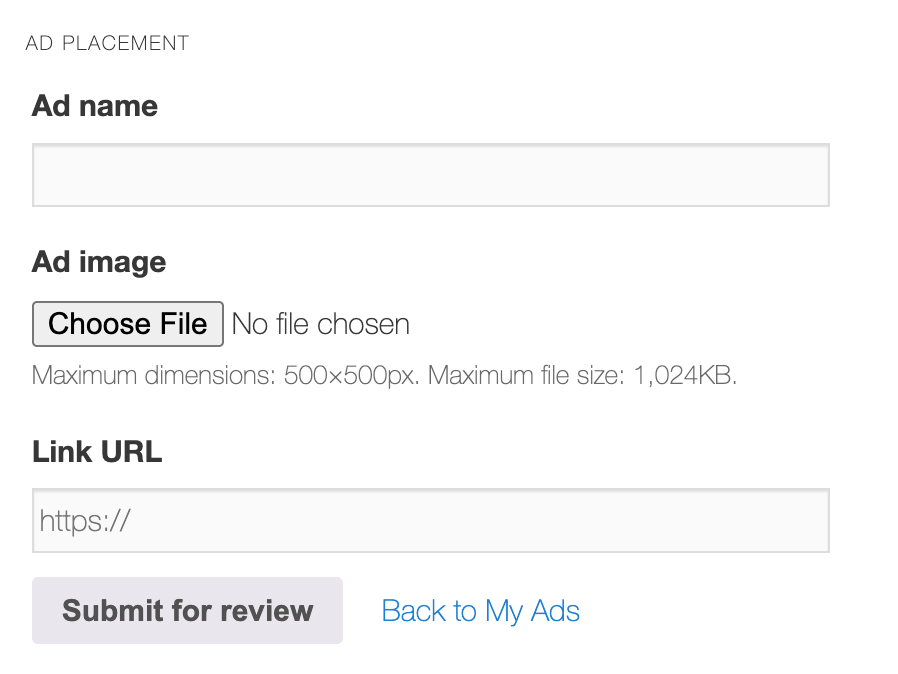
If this option is enabled, a My Ads section is added to the WooCommerce My Account page. The purchaser is directed to this page after purchase, where they will see each line item they have purchased. Clicking a line item presents a form where they can upload their banner image or rich content HTML.
Ad approval or rejection
When a customer submits an ad, it will enter Pending status, and a notification is sent to the WooCommerce “New Order” recipient. You can then publish, schedule, or reject the ad. If you choose to reject the ad, you can enter a note to the purchaser as to why. An email notification is sent to the customer notifying them of the denial.
Ad expirations
If your ad product has a limited duration, or the customer purchased a “price per day” ad, an expiration will be automatically set when the ad is published. This is true even if you schedule the ad for a future date. So, for example, if you schedule an ad to publish 5 days from now, and the buyer purchased 5 days, the expiration will be 10 days from now (5 days from publish).
Note that this feature uses the existing Ad Commander Expiration system. If you manually specify an expiration date for an ad, this can conflict. Leave the Expiration date blank to use the automatic system.